
Tairex AI Hospital App User Guide
Login
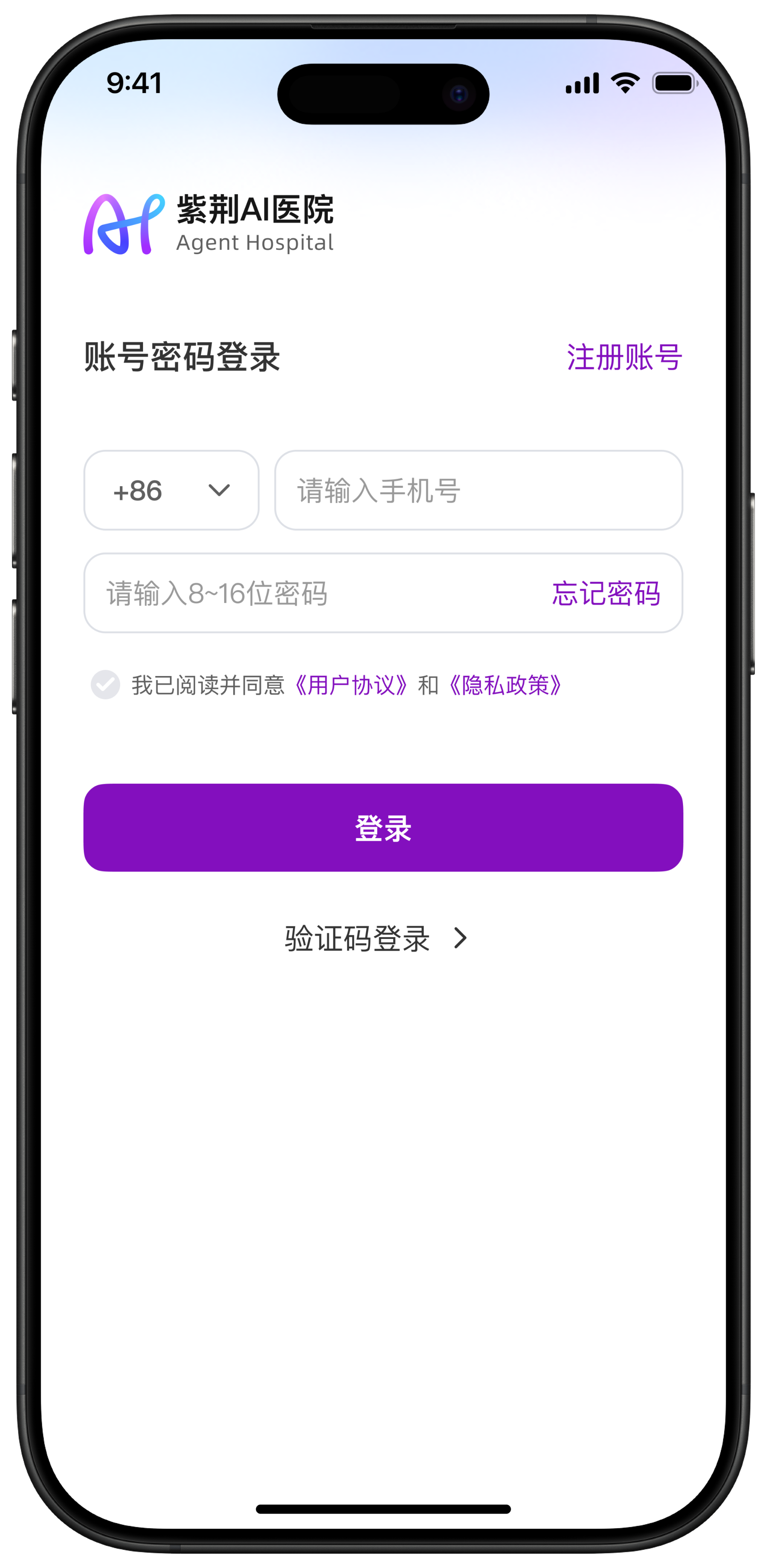
The application is currently in the testing phase, and self-registration is not yet available. Accounts will be created for users using their mobile phone numbers, and you can log in using a verification code sent via SMS.
Login Steps
- Open the app.
- Select Verification Code Login.
- Enter your mobile phone number.
- Check the box to agree to the User Agreement and Privacy Policy.
- Tap “Get Verification Code”.
- Enter the SMS verification code.
- Tap “Login”.
Note: If you would like to set a login password, you can tap “Forgot Password” to configure one.
Outpatient Consultation
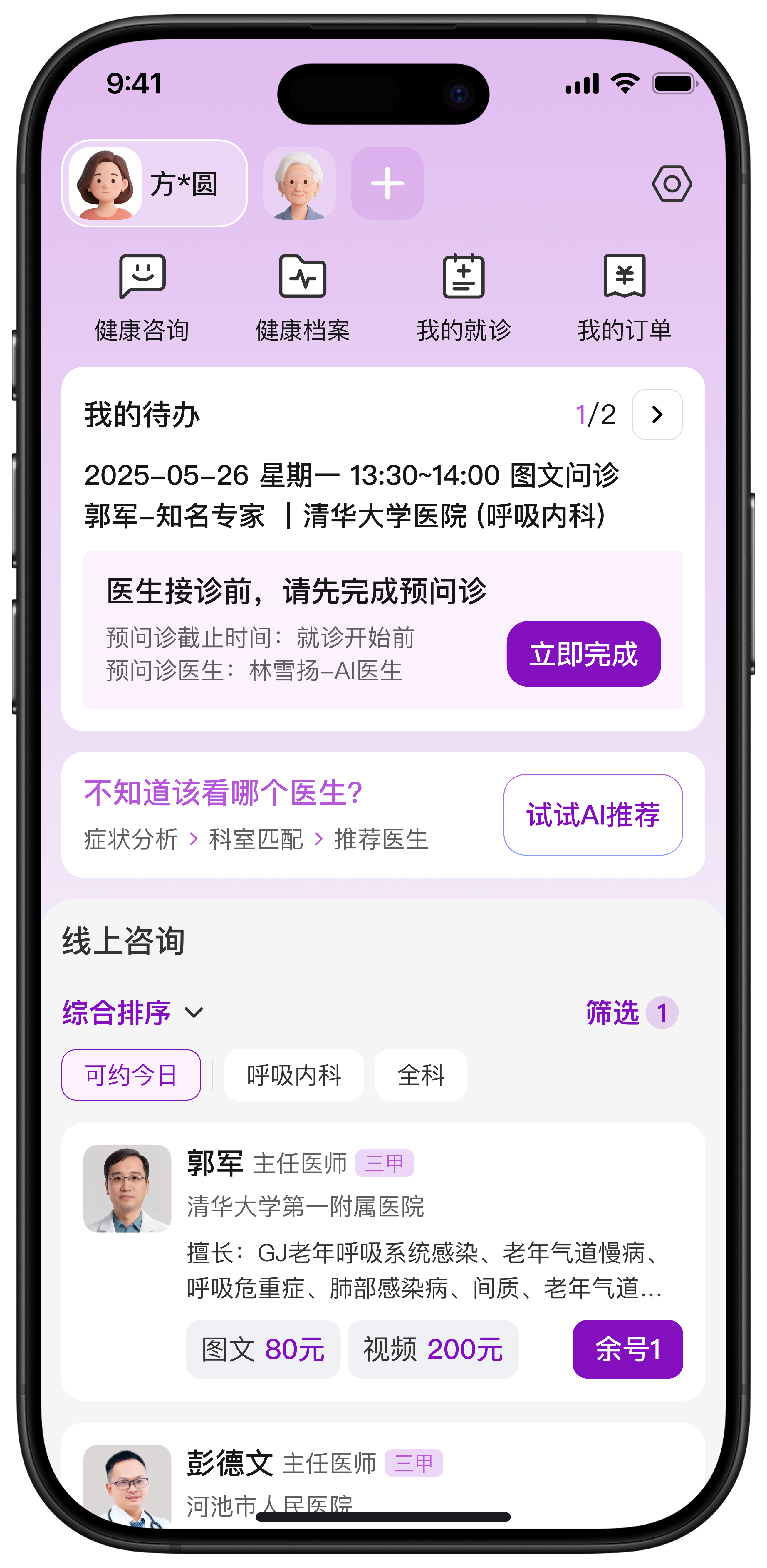
After successfully making an appointment, you can view your registration details on the app homepage.
Before the consultation, you must complete a pre-consultation questionnaire in the app.The doctor will begin the consultation only after the questionnaire has been completed.
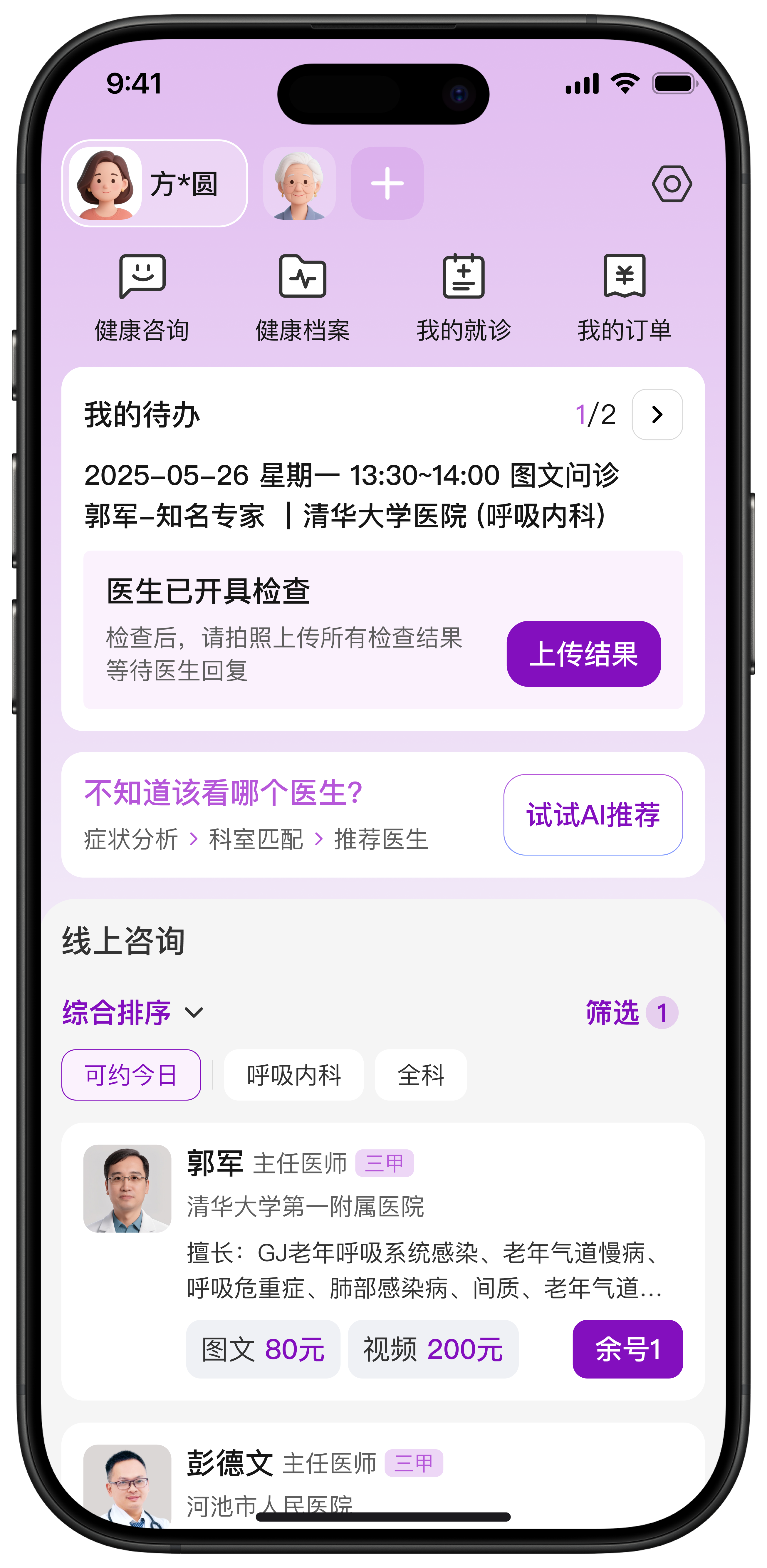
During the consultation, if the doctor orders tests or examinations, you will need to upload the results within the app.
After the consultation, you can view your medical record for this visit in the app.
Consultation Process
- Before the Consultation
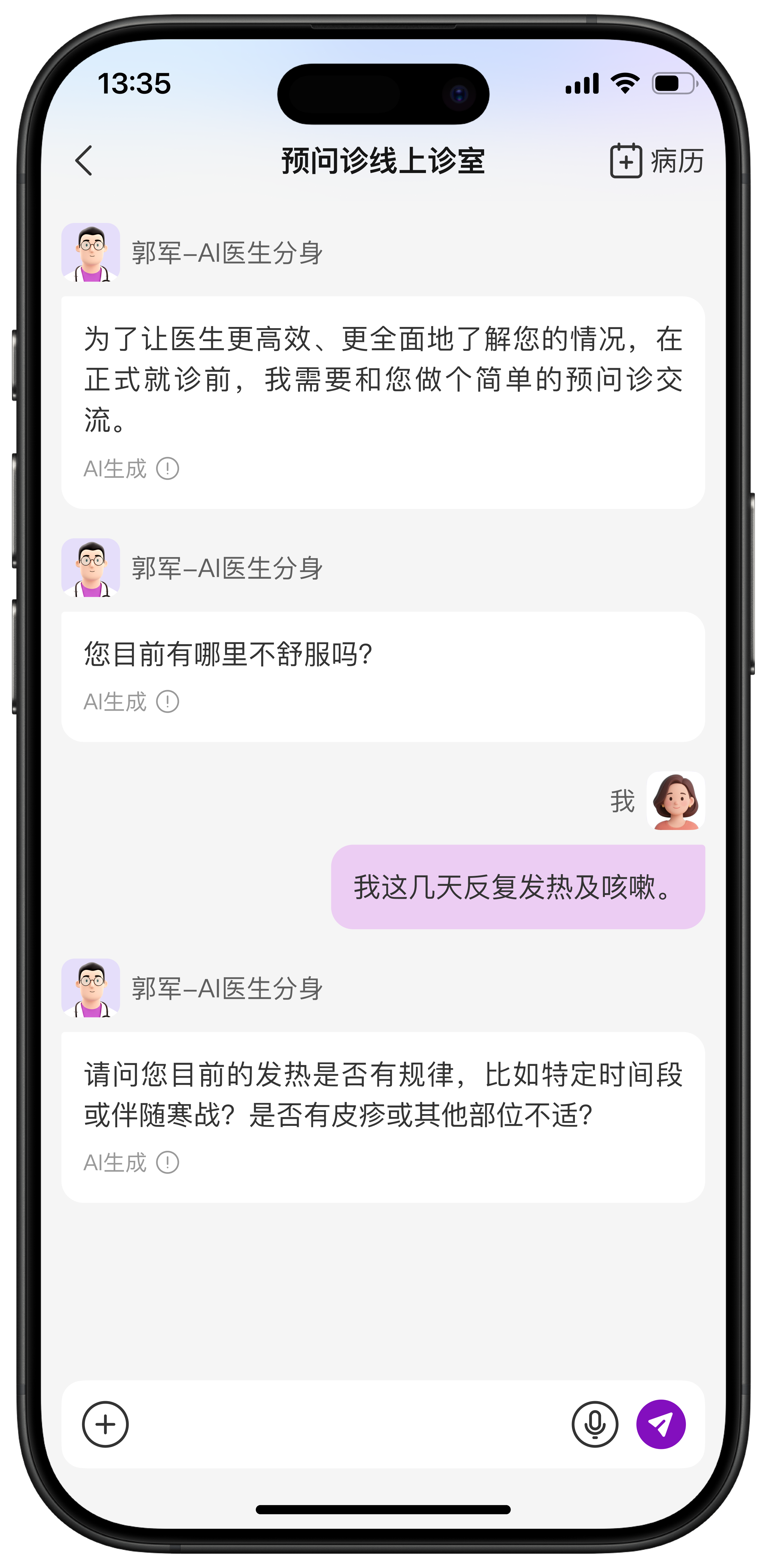
- Tap “Complete Now” on the homepage. → Finish the AI doctor pre-consultation questionnaire.
Note: Each question in the pre-consultation can be answered only once. After completion, you may tap “Medical Record” in the top-right corner to review and supplement the record.
 |  |
|---|
- On the Day of the Consultation
- Doctors will accept patients based on the following conditions:
a) Appointment time slot
b) Completion of the pre-consultation questionnaire
- If tests or examinations are prescribed:
a) After completing the examination, tap “Upload Results” on the homepage
b) Take a photo of the report and upload it → wait for the doctor to call your number again
- After the Consultation
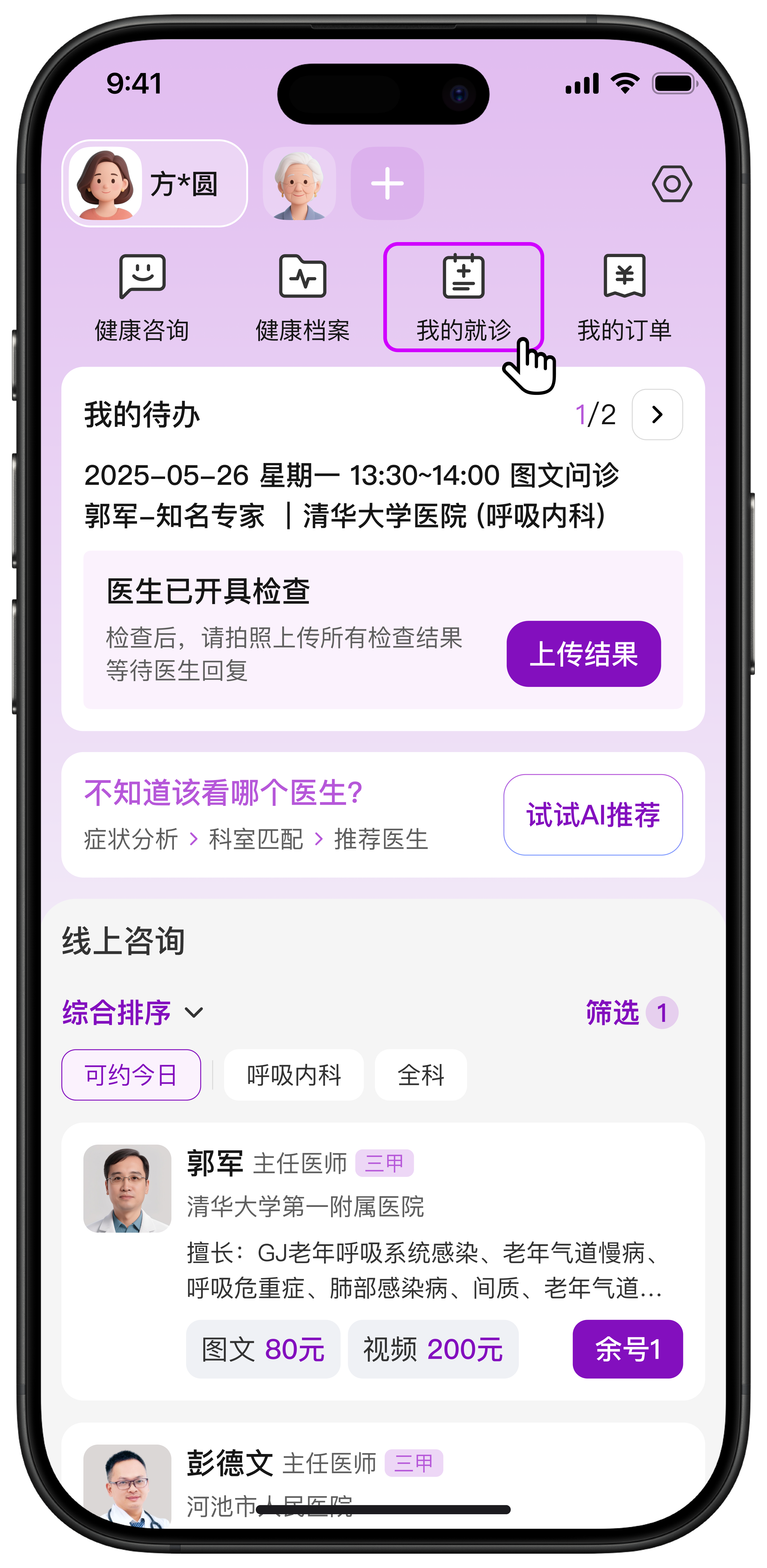
- Go to “My Visits” on the homepage → View your medical record
Health Records
You can upload medical records, examination reports, and other health documents, and the system will generate a comprehensive health analysis.
Operation Guide
- Go to “Health Records” on the homepage.
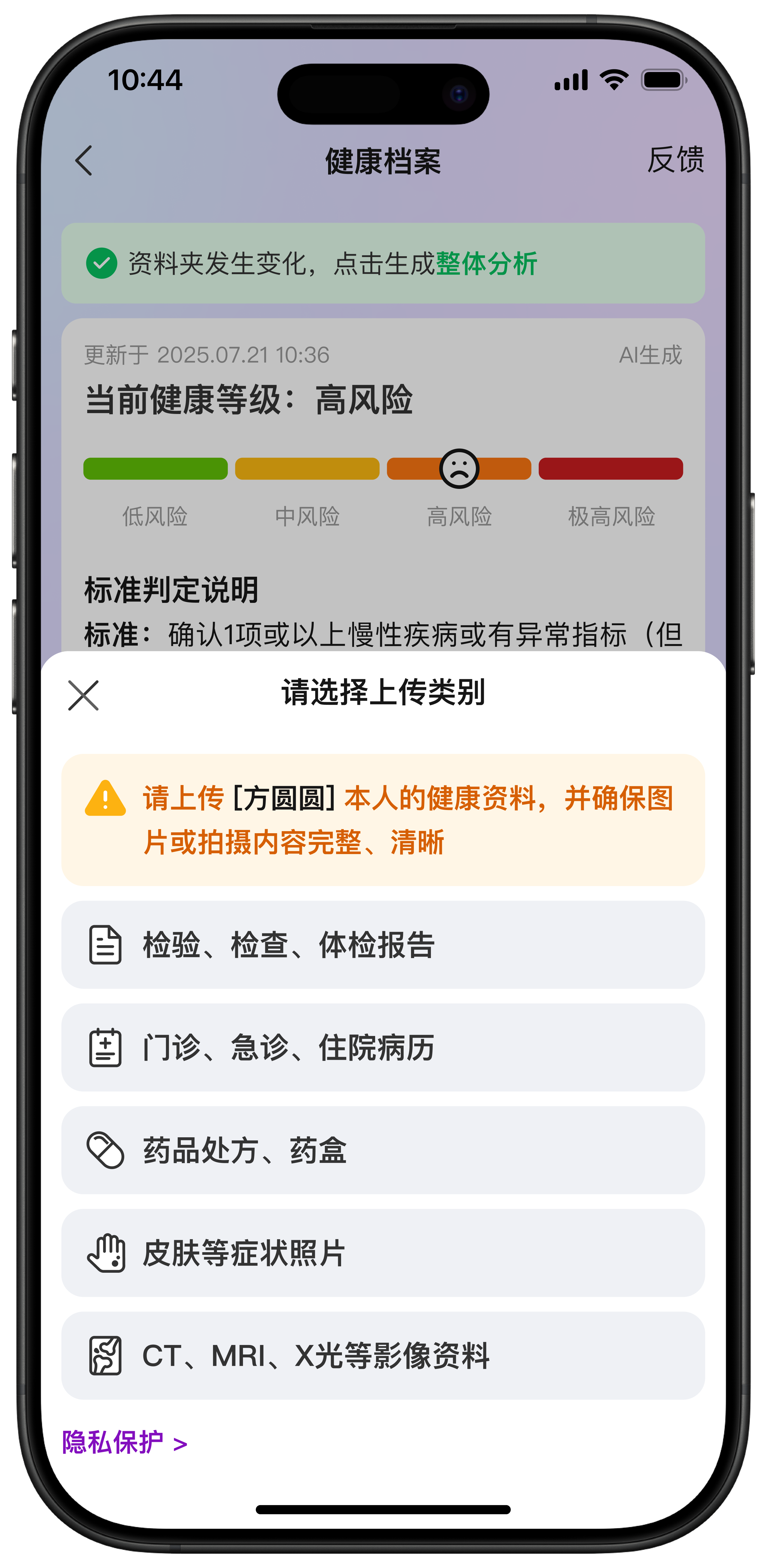
- Tap “Upload Health Data” (supports photo capture or selecting from the album).
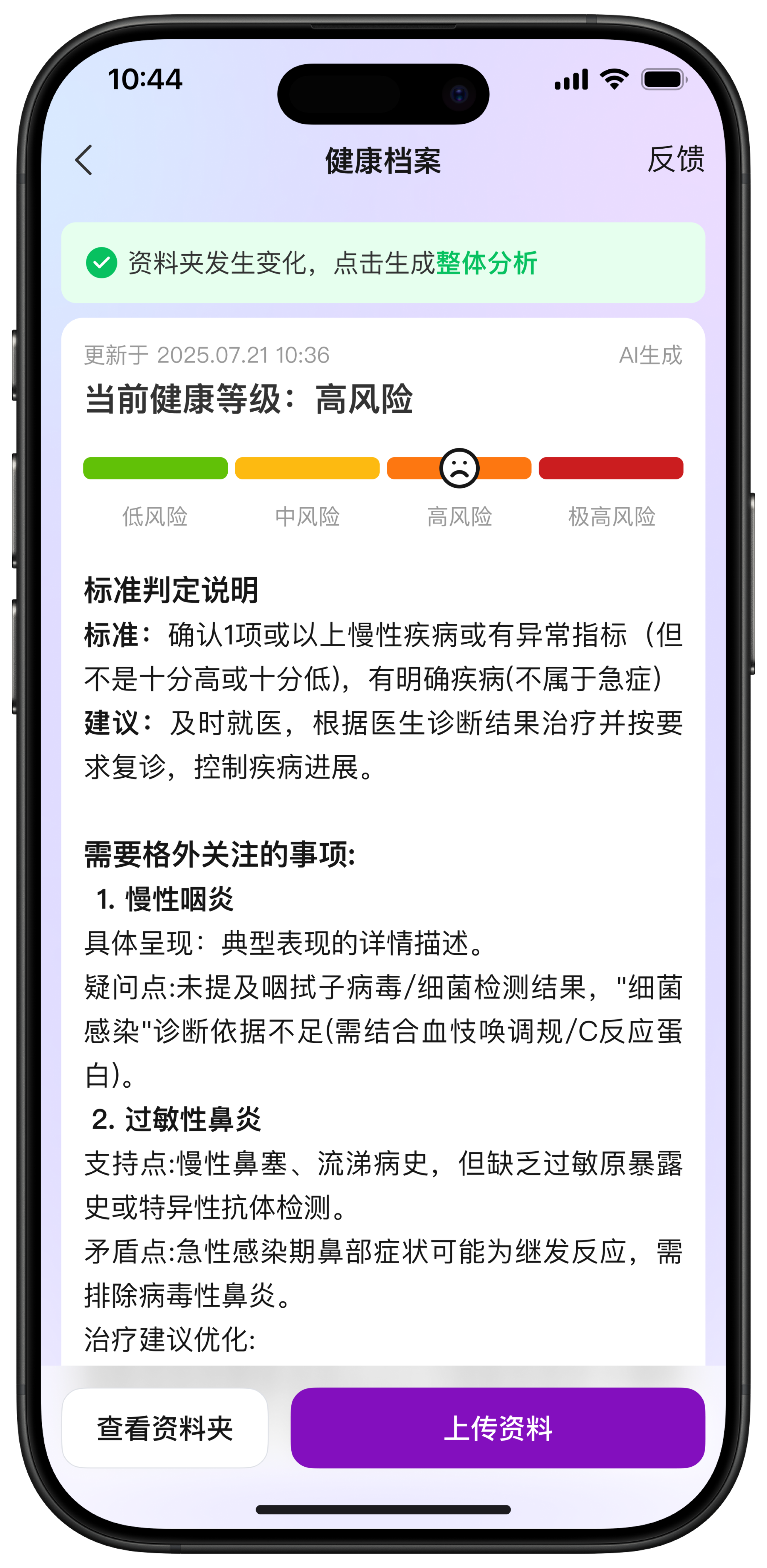
- Pull down to refresh and check the analysis progress.
- After analysis is completed, tap the green notification at the top to generate the overall report.
- View all uploaded files in “View Folder”.
 |  |
|---|
Health Consultation
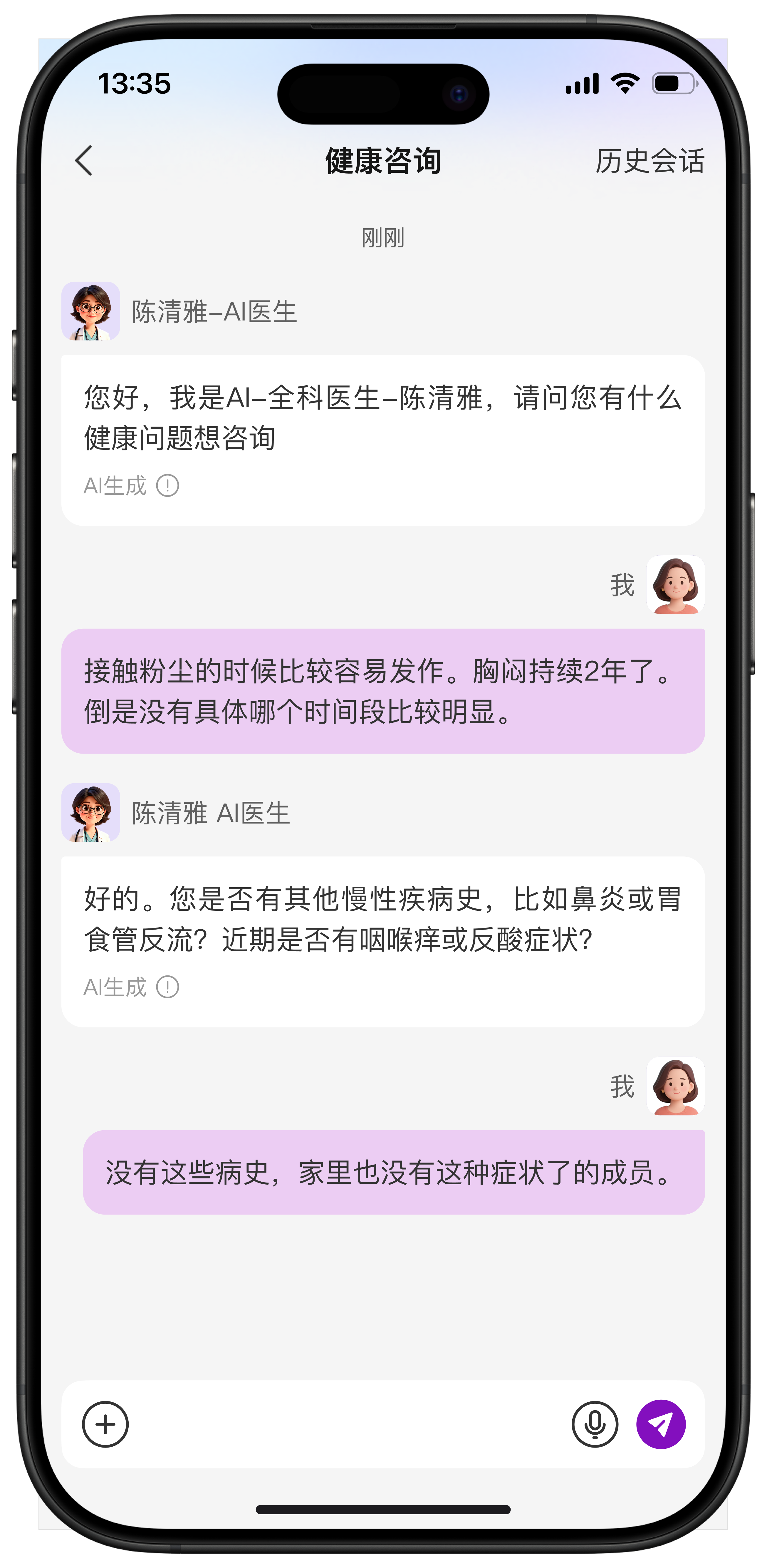
You can obtain quick answers to health questions and report interpretations through AI-powered conversations.
Instructions
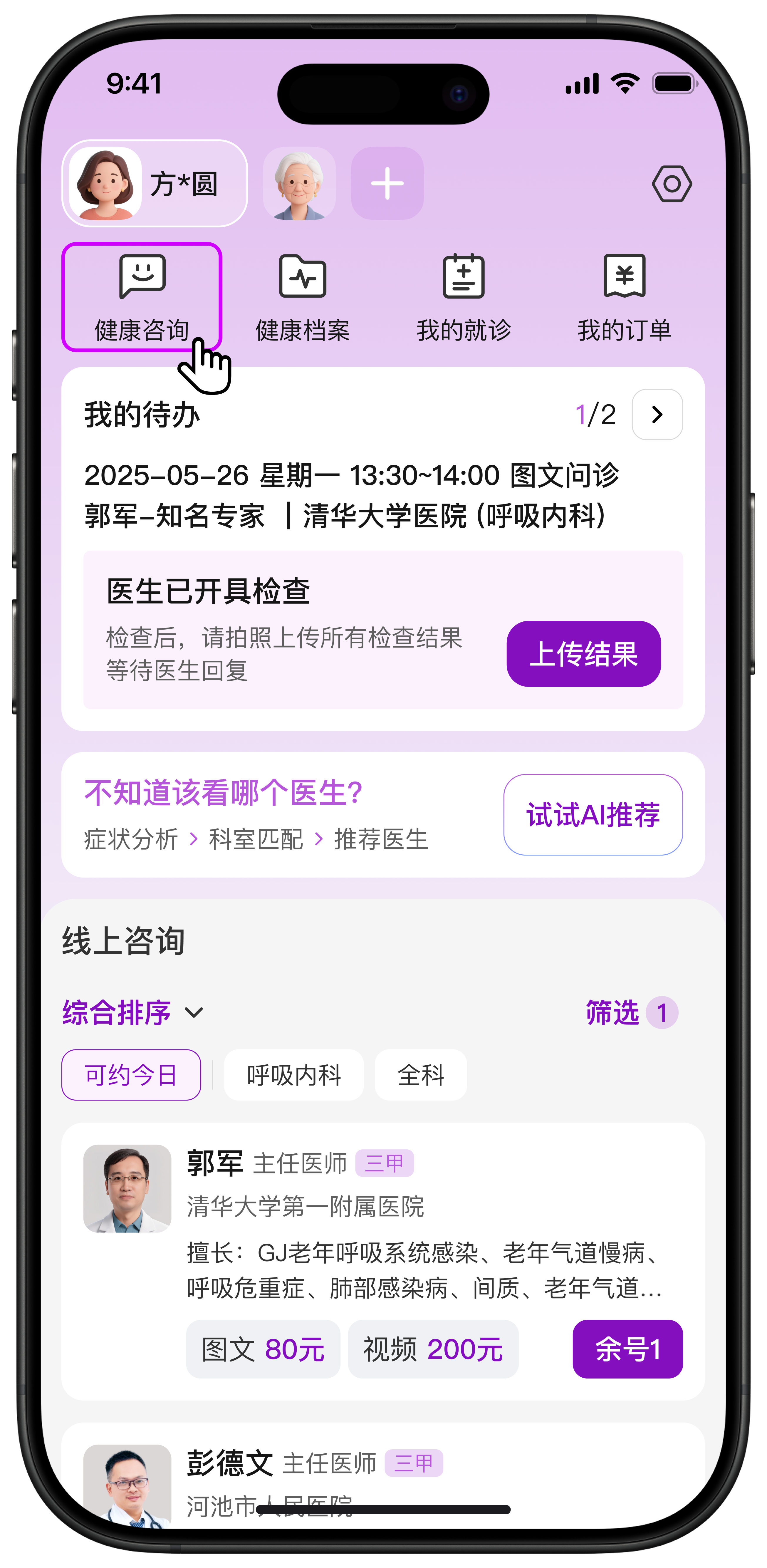
- Enter “Health Consultation” from the homepage.
- Describe your health question using text or voice, and the AI will provide answers.
- During the consultation, tap “+” in the input box to upload reports from your photo album or Health Records for interpretation.
Notes:
- Currently, only laboratory and examination reports are supported for interpretation.Symptoms or medical images are not supported for analysis yet.
- In case of medical emergencies, please seek immediate treatment at a hospital emergency department. AI responses are for reference only.
 |  |
|---|